


10 Common Linux Mistakes New Users Make and How to Avoid Them
A practical guide to the ten mistakes that trip up new Linux users, from root shells and package managers to permissions, backups and careless deletions.

Installing Linux takes twenty minutes. The weeks after that are where the trouble starts, not because the system is fragile but because it hands you sharp tools and assumes you know which end to hold. Most beginner disasters follow the same handful of patterns. Learn them now and you skip a lot of reinstalls.
Living inside a root shell
The first tutorial many people find tells them to type sudo su and stay there. Resist it. As root, nothing asks you to confirm anything. A command like rm -rf /home/you/build is fine, but one stray space — rm -rf /home/you /build — turns a tidy cleanup into a disaster, and the shell will not warn you.
Use sudo for the single command that needs it, then go back to being a normal user. Two habits help:
- Run whoami when you are unsure which account you are in. It takes a second and saves hours.
- Never launch graphical applications with sudo. Running sudo gedit /etc/fstab can leave root-owned files in your home directory, which then break your own desktop settings. Use the editor's own privilege prompt, or sudoedit.
Fighting the package manager
Every distribution has one package manager, and it wants to be the only one. On Debian and Ubuntu that is apt; elsewhere it is dnf, pacman or zypper. Trouble begins when you install the same program three different ways.
The most common slip is running sudo apt update and stopping there. That command only refreshes the list of available packages. Nothing on your system changes until you run sudo apt upgrade.
Two more traps:
- Downloading random .deb or .rpm files from a website. You get no security updates, and the file may fight with a packaged version later. Check your repositories first.
- Compiling from source into the same places your package manager uses. Install into /usr/local or keep it in your home directory instead, and remember that the package manager has no idea the program exists.
Python deserves its own warning. Modern distributions block pip install from writing into system directories, which is why you see the "externally-managed-environment" error. That message is a feature. Use a virtual environment with python3 -m venv .venv, or install for your user only with pip install --user.
Reaching for chmod 777
When something "does not work," the internet often suggests chmod -R 777. That makes every file readable, writable and executable by every account on the machine. It usually hides the actual problem, and on a shared system it is a genuine security hole.
Permissions are simple once you see them as three groups — owner, group, others — each worth 4 for read, 2 for write and 1 for execute. Files are normally 644, directories and scripts 755, and private keys should be 600. Diagnose before you change anything:
- Run ls -l to see who owns the file and what the mode is.
- Run id to see which groups your account belongs to.
- Fix ownership with chown, or add yourself to the right group with sudo usermod -aG docker $USER.
That -a matters. Without it, usermod replaces your entire group list instead of appending, and you may lose access to your own audio or storage devices. Log out and back in for group changes to apply.
If a file in your home directory is owned by root, the fix is almost never a permission change. It is sudo chown -R yourname:yourname ~/path.
Editing config files without a backup
Before you touch anything under /etc, copy it:
sudo cp /etc/ssh/sshd_config /etc/ssh/sshd_config.bak
That one line turns a broken service into a two-second revert. It also helps to change one thing at a time, then restart only the affected service with sudo systemctl restart ssh so you know what caused the failure.
For the bigger picture, keep a real backup: your personal files copied to a separate drive with rsync or a file-level tool, and a system snapshot with Timeshift, Borg or similar. A snapshot stored on the same disk is not a backup — if the drive dies, both copies go with it. And test a restore once, while nothing is at stake. An untested backup is a hope, not a plan.
Treating the terminal as a copy-paste box
Pasting commands from a forum is normal. Pasting them blind is how machines get broken. Piping a script from the internet straight into bash — curl something | bash — means you are executing code you have not seen, as your user, on your machine. Download it, read it, then run it.
Learn three cheap reflexes: man command for the manual, command --help for the short version, and a look at what a wildcard matches before it is used. Also remember that redirection happens in your shell, not in the command you elevated. This fails:
sudo echo "nameserver 1.1.1.1" > /etc/resolv.conf
Because your ordinary user opens that file. This works:
echo "nameserver 1.1.1.1" | sudo tee /etc/resolv.conf
Deleting the wrong thing
There is no recycle bin in the terminal. Wildcards and spaces are the usual culprits: rm * .txt deletes everything in the directory and then complains about .txt, while rm file*.txt does what you meant. List the matches first with ls, use Tab completion instead of typing paths, and consider installing trash-cli so trash replaces rm for everyday work.
Disk-writing tools deserve even more care. Before any dd command, run lsblk and confirm the device name. Getting of=/dev/sda and of=/dev/sdb mixed up overwrites the wrong drive instantly, with no undo.
Ignoring what the error message says
Beginners often close a terminal window the moment something fails. Read it instead. Error messages usually name the file, the line number and the missing dependency, which is most of the answer.
Useful places to look:
- systemctl status servicename for a failing service and its last log lines.
- journalctl -xe for recent system-wide errors, or journalctl -u servicename -f to follow one service live.
- Files under /var/log for older history.
When you ask for help, paste the exact text rather than your summary of it. "It says permission denied" and "mkdir: cannot create directory '/media/backup': Permission denied" lead to very different answers.
Habits that prevent most of this
None of these mistakes come from Linux being hard. They come from moving faster than the system expects. A few habits cover nearly all of it:
- Read a command before you run it, especially with sudo attached.
- Back up a config file before editing it, and keep your data on a separate drive.
- Change one thing at a time, so you know what to undo.
- Use the distribution's package manager instead of hunting for installers.
- Keep a live USB around. It turns "my system will not boot" from a crisis into a repair job.
- Experiment in a virtual machine when the stakes are high — it costs nothing to break.
Do those six things and the sharp tools stop being dangerous. That is the point at which Linux stops feeling like a test and starts feeling like a machine you own.
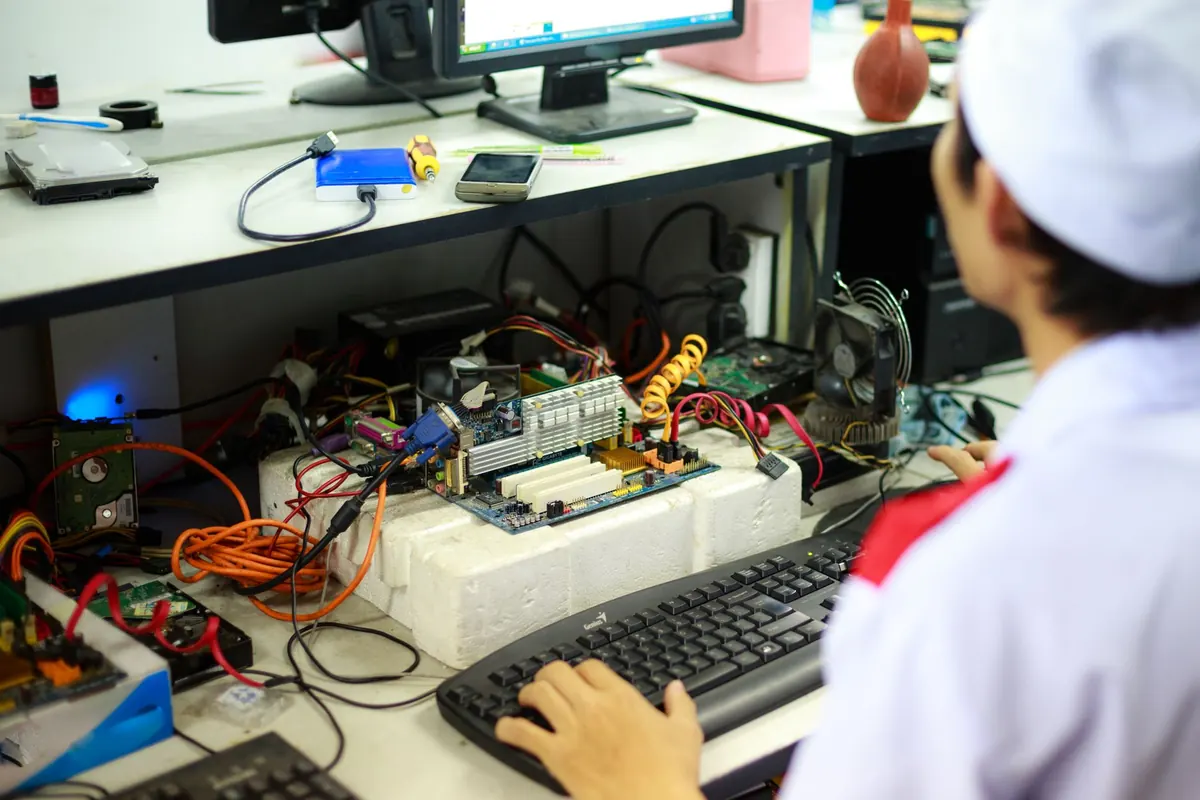
Photo: energepic.com / Pexels